Recall or delete a sent email message
Summary
With message recall, a message that you sent is retrieved from the mailboxes of the recipients who haven’t yet opened it.
You can also substitute a replacement message. For example, if you forgot to include an attachment, you can try to retract the message, and then send a replacement message that has the attachment.
Message recall is available after you click Send and is available only if both you and the recipient have an NSCC email account.
Body
What is this?
Please note: This recall feature is only available on the full Outlook desktop client. The recall action is not present on Webmail or a mobile device.
With message recall, a message that you sent is retrieved from the mailboxes of the recipients who haven’t yet opened it. You can also substitute a replacement message.
For example, if you forgot to include an attachment, you can try to retract the message, and then send a replacement message that has the attachment.
Message recall is available after you click Send and is available only if both you and the recipient have an NSCC email account. Messages sent to email addresses outside the college cannot be recalled.
If the message contents are of a critical or sensitive nature, contact your campus Di&Tech staff to get immediate support.
Instructions
To recall and replace a message
-
In the folder pane on the left of the Outlook window, choose the Sent Items folder.
-
Open the message that you want to recall. You must double-click to open the message. Selecting the message so it appears in the reading pane won't allow you to recall the message.
-
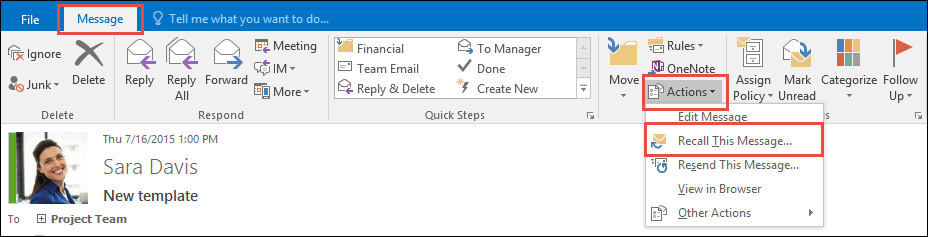
From the Message tab, select Actions > Recall This Message.
-
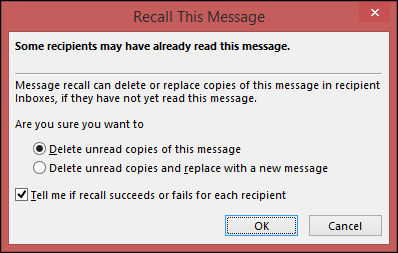
Click Delete unread copies of this message or Delete unread copies and replace with a new message, and then click OK.
-
If you’re sending a replacement message, compose the message, and then click Send.
Details
Details
Article ID:
89868
Created
Tue 5/12/20 9:43 AM
Modified
Thu 4/14/22 1:22 PM